


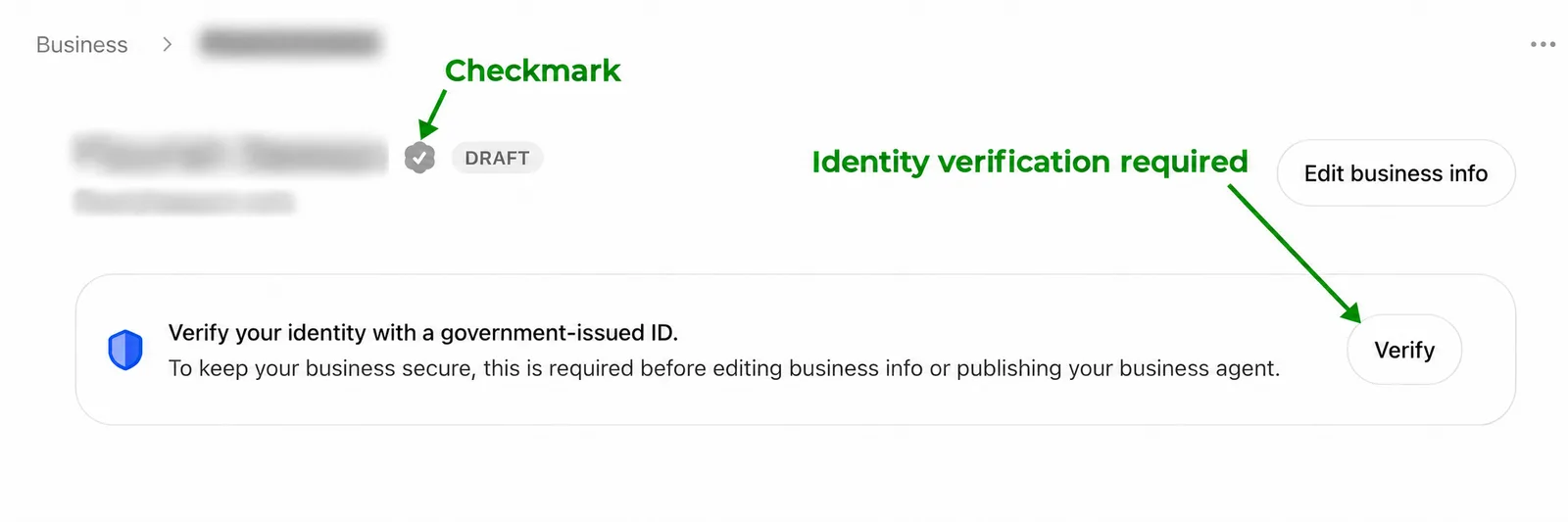
Look for the blue verified badge and an approval email from OpenAI. A gray checkmark by itself is not enough: the example below shows a gray checkmark alongside a request to verify identity (OpenAI Help Center).
Step 1: Open your business overview
Open Business Hub and select your business. Check the area next to its name and the messages immediately below it.
In this example, the profile has a gray checkmark and a DRAFT label, but the banner still asks for a government-issued ID. Identity verification is still required on this screen.
Step 2: Check for a verification request
If you see Verify your identity with a government-issued ID, click Verify and follow the instructions.
The banner explains that this is required before editing business information or publishing a business agent. Do not treat the nearby checkmark or DRAFT label as confirmation that this requirement is complete.
Step 3: Confirm approval
Claim approval and Persona identity verification are separate. OpenAI says the blue verified badge appears after Persona approval; submitting the information alone is not approval. Check your email for the decision.
What the signals mean
| What you see | What it tells you |
|---|---|
| A gray checkmark and a verification banner | The banner still requires action; the gray checkmark does not settle your verification status. |
| A request for government-issued ID | Follow the identity verification flow using Verify. |
| A blue verified badge | OpenAI identifies this as the badge shown after Persona approval. |
| DRAFT | This label does not confirm identity verification. |
If OpenAI has approved you but the Hub still says verification is incomplete, contact OpenAI Support.
Once you’re verified, you can add an external person to Business Hub.
Sources
- OpenAI Help Center: Setting up your business on ChatGPT, sections on Persona verification and verification problems.
Screenshot reflects the Business Hub view from November 10, 2026. Business details are obscured.

